QuickBooks Online Multicurrency Setup Without Costly Errors
Foreign invoices can make accurate bookkeeping difficult when every amount arrives in a different currency. QuickBooks Online multicurrency helps you record customers, vendors, bank accounts, invoices, and bills in their actual currencies while reporting totals in your home currency.
The setup needs planning because multicurrency is a permanent company-file decision. Once you turn it on, you can't turn it off or change the home currency later. Follow these steps before entering your first foreign-currency transaction.
Before activating QuickBooks Online multicurrency
Multicurrency is available in QuickBooks Online Essentials, Plus, and Advanced. It isn't available in Simple Start. In the United States edition, the home currency is U.S. dollars, and you can't select another home currency after activation.
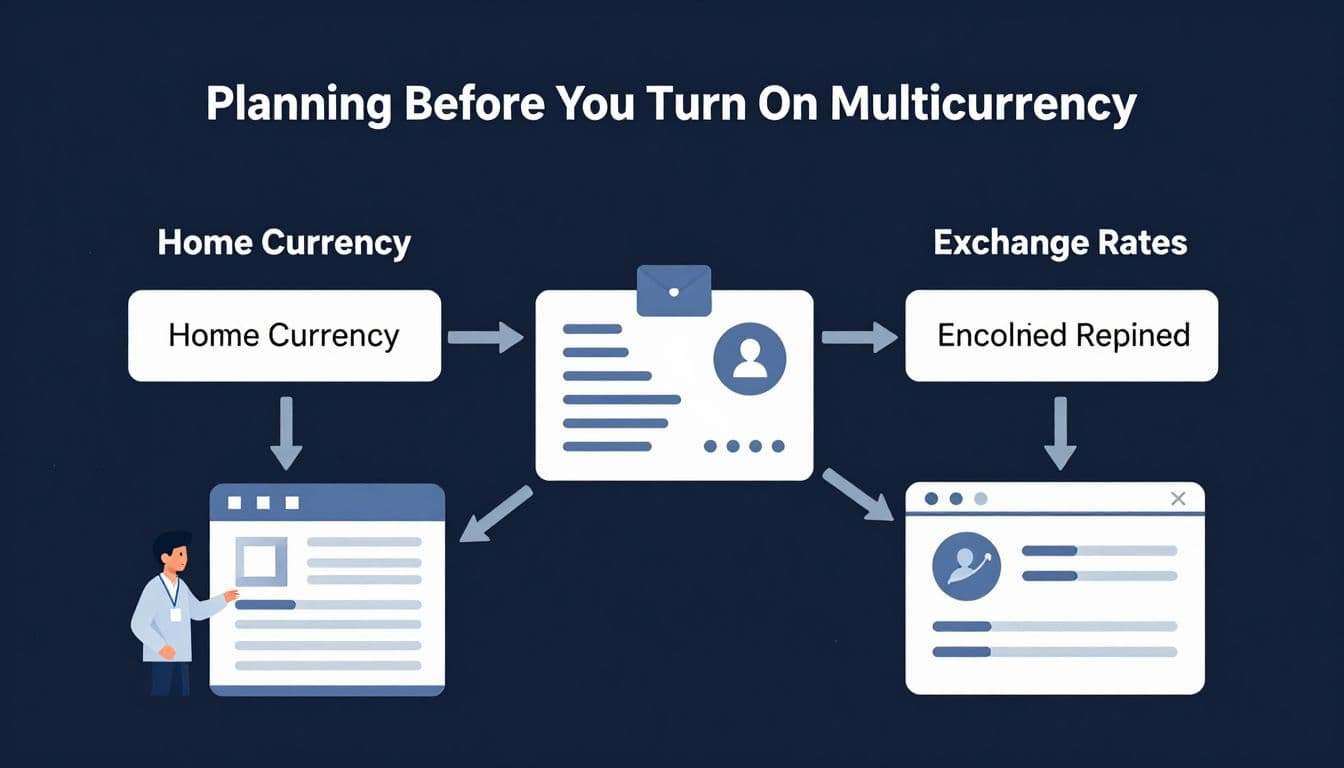
Take time to map your foreign activity before changing the setting. Write down:
- The currencies your customers pay in
- The currencies you use to pay vendors
- Any foreign bank or credit card accounts
- The currencies used for loans, investments, or owner accounts
- The exchange-rate policy your business will follow
Each customer, vendor, and account can have only one assigned currency. For example, a customer record assigned to euros can't later be changed to Canadian dollars after transactions have been posted. You would need to create a new record for the different currency.
Important: Once multicurrency is enabled, QuickBooks Online can't turn it off. Review the decision with your bookkeeper or accountant before activation.
QuickBooks also handles account types differently. Bank, asset, credit card, liability, and equity accounts can have foreign currencies. Income and expense accounts use the home currency because QuickBooks converts those transactions into the company's reporting currency.
If your business is still building its chart of accounts, review your QuickBooks setup for products and services before going live. Currency settings, tax settings, and product records work better when you plan them together.
How to turn on QuickBooks Online multicurrency
After confirming that your plan supports the feature, activate it through the company settings. Complete the following steps in order:
- Open Account and settings. Select the gear icon in QuickBooks Online, then open Account and settings .
- Choose the Advanced tab. Find the currency section under the advanced company settings.
- Confirm the home currency. In a U.S. QuickBooks Online account, this is usually U.S. dollars. Check it carefully because you won't be able to change it after activation.
- Turn on multicurrency. Select the edit icon in the currency section, choose the multicurrency option, and save the change.
- Confirm the warning. QuickBooks displays a warning explaining that the setting is permanent. Read it before confirming.
- Open the currency list. Return to the settings menu and open the currency list. Add each foreign currency your business actually uses.
Avoid adding currencies simply because you might need them someday. A shorter list makes customer records, vendor records, and reports easier to review. You can add another supported currency later, but you should avoid unnecessary choices in the beginning.
The exact labels can vary by region and QuickBooks Online subscription. If the currency option doesn't appear, check your plan first. Simple Start accounts don't include multicurrency.
Set up customers, vendors, and foreign accounts
Once the feature is active, assign the correct currency as you create or edit each record. The currency belongs to the customer or vendor profile, so QuickBooks can use it consistently on future transactions.
For a foreign customer, open the customer profile and select the currency used for billing. Use the same process for vendors. Confirm the currency before saving because QuickBooks won't let you change it after a transaction is posted.
Create or review the related balance-sheet accounts next. If your company has a euro bank account, for example, set up the account with euros. Use the currency that matches the real bank account, not the currency that feels most convenient for reporting.
You don't need a separate bank account in QuickBooks for every currency you accept. However, each real foreign bank account should have its own accurate account record if you need to reconcile it. Combining several currencies in one bank account can make reconciliation and financial review harder.
Keep these rules in mind:
- One customer, vendor, or account can have one currency.
- Foreign bank accounts should match the currencies used by the actual financial institution.
- Income and expense accounts remain in the home currency.
- A transaction's currency should match the related customer, vendor, or account.
- Review opening balances before importing or entering foreign transactions.
If a customer pays in euros but you accidentally create the record in U.S. dollars, correcting the mistake later may require a new customer record and careful cleanup. Fixing the setup first is easier than correcting several invoices and payments.
Record invoices, bills, and payments correctly
With QuickBooks Online multicurrency, QuickBooks displays the transaction in the customer's or vendor's currency while also calculating the home-currency value for your financial statements.
When you create a foreign-currency invoice, select the correct customer. QuickBooks applies that customer's assigned currency. Enter the invoice amount in the foreign currency, then review the exchange rate and home-currency total before saving.
QuickBooks defines the exchange rate as the number of home-currency units needed for one unit of foreign currency. For example, a rate of 1.08 means one euro equals 1.08 U.S. dollars for that transaction. A EUR 1,000 invoice would therefore carry a home-currency value of USD 1,080 at that rate.
QuickBooks can download exchange rates automatically. Intuit's help materials identify IHS Markit as the default source. You can also enter your own rate when your bank, payment processor, or accounting policy requires a different rate.
Bills follow the same basic process. Select the foreign vendor, confirm the bill currency, enter the bill date, and check the converted home-currency amount. When you pay the bill, the payment currency must match the bill currency.
The bill date and payment date may produce different exchange rates. QuickBooks records the bill using the rate for the bill transaction and the payment using the rate available on the payment date. The difference can create an exchange gain or loss in your home-currency records.
Review these differences during month-end close. Don't change a rate only to force the converted amount to match an old report. Use the rate that fits your documented accounting policy and retain supporting records from the bank or payment provider.
Understand the limits before you rely on the feature
Multicurrency covers common foreign-currency bookkeeping needs, but it changes how some QuickBooks features work. Intuit lists several limitations that can affect a small business:
- Online invoice payments are limited to U.S. currency and U.S. bank accounts.
- Memorized and recurring transactions work only when the currency is U.S. dollars.
- QuickBooks doesn't provide customer- or currency-specific pricing.
- Some tools, including Insights, Income Tracker, and Bill Tracker, aren't available with multicurrency.
- Transfers between accounts in different currencies may require a clearing account or journal entry instead of a simple bank transfer.
- Batch transaction tools and certain Desktop exchange features may not be available.
These limits matter when you plan billing and collections. A company that sends recurring invoices in euros may need to create each invoice manually or use an outside workflow. A company that receives payments through multiple currency accounts may need a clearing process for transfers and fees.
Before activation, test one complete workflow in a sample environment if possible. Trace the process from customer invoice to payment, bank deposit, reconciliation, and reporting. This test can reveal problems before they affect your live books.
Reconcile foreign transactions and review tax treatment
Reconcile each foreign bank account against its statement in the account's currency. Compare the statement balance, transaction dates, bank fees, and converted home-currency value. Exchange-rate changes can make the home-currency balance move even when the foreign-currency balance stays the same.
At month-end, review accounts receivable and accounts payable by currency. Look for unpaid invoices with outdated rates, payments applied to the wrong customer, duplicate vendor records, and foreign bank fees posted to the wrong account.
Currency doesn't decide whether a sale or purchase is taxable. Your product, service, customer location, tax registration, and applicable state or local rules determine the tax treatment. For a Florida business, review sales tax settings separately from currency settings and ask a qualified tax professional about unusual transactions, foreign vendors, and exchange gains or losses.
Before filing, compare QuickBooks reports with the tax return and payment records. A sales tax payable reconciliation in QuickBooks Online can help identify whether a discrepancy came from a tax code, account mapping, transaction date, or payment entry.
Keep a written record of your exchange-rate policy. State which source you use, when you update rates, and how you handle fees or gains and losses. Your tax professional can help determine how those amounts should appear in your accounting and tax records.
Conclusion
QuickBooks Online multicurrency can keep foreign invoices, bills, and bank activity organized, but the setup needs a careful plan. Confirm your home currency, choose the right subscription, list the currencies you actually use, and assign each customer, vendor, and account correctly.
The most important step happens before activation because the feature can't be turned off afterward. Once your records are built, consistent exchange-rate practices and regular reconciliations will give you cleaner reports and fewer surprises at tax time.