Fort Myers Sales Tax Payable Reconciliation in QuickBooks Online
When sales tax in QuickBooks Online does not match what you filed, the problem usually started earlier than the return. A Fort Myers business also has a local layer to watch, because most taxable sales need Florida's 6% state sales tax plus Lee County's 1% discretionary surtax, for a typical 7% combined rate.
That rate is only the starting point. The real job is making sure the tax was charged correctly, posted to the right liability account, and paid in the right period.
This guide walks through a practical sales tax payable reconciliation process in QuickBooks Online, so your books, your return, and your bank payment all agree.
Florida and Lee County sales tax basics that shape the reconciliation
Fort Myers businesses usually collect sales tax at the combined 7% rate on taxable sales. Still, the exact rate and rules should be checked with the Florida Department of Revenue before each filing period, because local surtax rules can change.
If your QuickBooks file is still being set up, the Fort Myers QuickBooks setup checklist for new small businesses is a helpful companion. Early setup choices affect tax codes, item mapping, and the account that holds your liability balance.
Florida is destination-based, so where the buyer receives the product or service matters. That means a Fort Myers sale can still need careful rate review if the delivery or service location changes.
If your books use different timing rules than your tax filing, keep that in mind too. The Fort Myers cash vs accrual accounting guide helps when timing differences make the numbers look off.
Set up QuickBooks Online so the tax lands in the right account
If the setup is wrong, the month-end review gets messy fast. QuickBooks Online can only reconcile what it recorded correctly in the first place.
Start in Taxes > Sales tax and confirm the filing agency, filing frequency, and tax rates. Then open Accounting > Chart of Accounts and make sure the sales tax liability account is a liability account, not income or expense.
Next, review Sales > Products and Services . Each taxable item should carry the right tax code. If an item is marked non-taxable by mistake, QuickBooks will understate the liability.
Before you close the month, open a recent invoice or sales receipt and check the tax calculation line by line. A bad item setup or a wrong customer tax setting can distort the whole return.
The liability report is only as good as the tax code on each sale. If the code is wrong, the month-end number will be wrong too.
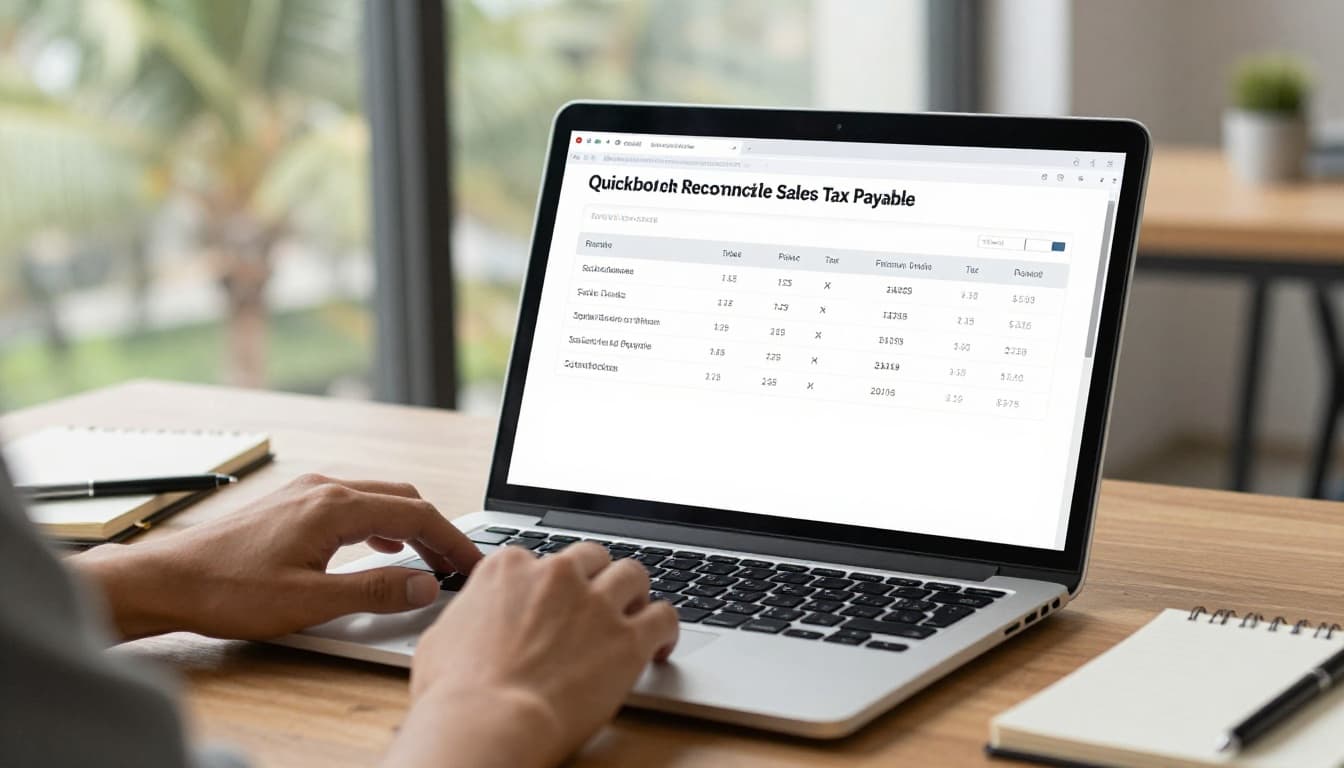
Now run Reports > Sales Tax Liability for the filing period. Compare the report to the return you plan to file. The numbers should align before you submit payment to the Florida Department of Revenue.
Step-by-step sales tax payable reconciliation in QuickBooks Online
Use the same order every month. That keeps the process calm and repeatable.
- Open Reports > Sales Tax Liability
and set the date range to the filing period.
Match the report dates to the return dates, not just the calendar month. - Compare total taxable sales, exempt sales, and tax collected.
If those numbers do not agree with your return prep, stop there and investigate. - Check the Sales Tax Payable
balance on the Balance Sheet
.
That ending balance should reflect what you still owe, minus what you already paid. - Review the bank payment in Accounting > Reconcile
or in the bank feed.
The payment should clear the liability account when it posts to the bank. - Match the payment date to the filing period.
Florida returns are usually due after the period ends, so a month-end liability can remain until the payment clears. - Save copies of the sales tax report, filed return, and payment confirmation.
Those three records make next month much easier.
A simple example helps. If you collected $700 in sales tax during March and paid it on April 20, March should still show the liability until the April payment clears. That is a timing issue, not always a bookkeeping error.
Common sales tax payable mismatches and how to fix them
When the balance does not tie out, the issue is often one of the same few problems. The table below shows where to look first.
| Problem | What it usually looks like in QuickBooks Online | Best next step |
|---|---|---|
| Prior-period adjustment | A balance appears in the wrong month after a late invoice, amended return, or journal entry | Trace the entry date and move the correction to the proper period |
| Uncategorized deposits | The bank feed shows a deposit that was posted as income instead of a tax-related clearing item | Reclassify the deposit and confirm the source transaction |
| Duplicated sales | Income is recorded twice, often once through an invoice and again through a bank feed deposit | Void or exclude the duplicate, then rerun the sales tax report |
| Tax collected but not mapped correctly | Tax is on the invoice, but the liability report is too low | Check the item tax code and customer tax settings |
| Filing and payment timing difference | The return is filed in one month, but the bank payment clears in the next | Leave the liability until the payment clears, then match the bank transaction |
If the mismatch points to deposits, check Undeposited Funds before you touch the tax return. The QuickBooks undeposited funds cleanup Fort Myers guide is useful when daily sales, card batches, or split payments sit in limbo.
Also watch for sales tax that was booked to income by mistake. That entry may need a journal entry to move it into the liability account, but any correction like that should be reviewed by a qualified tax professional first.
A monthly close routine that keeps Florida returns clean
A strong reconciliation process is not fancy. It is consistent.
The Fort Myers QuickBooks bank reconciliation checklist works well alongside sales tax review, because both depend on the same month-end discipline.
Use this close routine every month:
- Run Sales Tax Liability
before you reconcile the bank.
That tells you what QuickBooks thinks you owe. - Compare the report to your Florida return draft.
Check taxable sales, exempt sales, and the tax due. - Reconcile the bank payment after it clears.
Use Accounting > Reconcile so the payment matches the actual bank transaction. - Review the balance sheet after the payment posts.
The sales tax payable account should drop by the amount paid, minus any valid adjustment. - Save the return, the payment proof, and any notes about corrections.
A short note now can save hours later.
If your filing schedule changes, or if you process tax manually for some months and through QuickBooks for others, be extra careful with timing. The same sale should not move through different methods without a clear reason.
Conclusion
A clean sales tax payable reconciliation comes down to three things, the right tax setup, the right period, and the right payment match. In Fort Myers, that means staying on top of Florida sales tax plus the Lee County surtax, then checking the current rules with the Florida Department of Revenue before each filing period.
QuickBooks Online can show you the answer, but only if the items, tax codes, and bank payments were posted correctly. When the balance is off, start with the common causes first, especially timing differences, uncategorized deposits, and wrong tax mapping.
A steady month-end process keeps the liability account honest and makes every return easier to file.