Afterpay Payout Reconciliation Checklist for QuickBooks
An Afterpay payout can look like one bank deposit, but it may represent many customer orders, refunds, processing fees, and other adjustments. That makes Afterpay payout reconciliation in QuickBooks more detailed than matching a deposit to a single sales receipt.
The main rule is simple: record the sale at the correct gross amount, track Afterpay deductions separately, and match the final net payout to your bank. The checklist below helps small-business owners and bookkeepers complete that process without overstating income or leaving unexplained balances.
How Afterpay payout reconciliation fits into your books
Afterpay's customer payment schedule and your merchant settlement are separate accounting events. Your customer may pay Afterpay over time, while your business receives a settlement based on the merchant agreement. The exact payout timing, fee labels, refund treatment, and adjustment categories can vary by merchant setup and jurisdiction.
A bank deposit shows cash received , not necessarily total sales. If you post the deposit directly to a sales income account, QuickBooks may understate revenue by the amount of Afterpay fees, refunds, or other deductions.
A common bookkeeping structure uses these accounts:
- A sales income account records the gross value of completed sales.
- An Afterpay clearing or receivable account tracks amounts due from the payment processor.
- A processing-fee expense account records merchant fees separately.
- Refunds, returns, chargebacks, and adjustments follow the business's established accounting policy.
- A sales tax payable account tracks tax collected on taxable transactions.
The clearing account works as a temporary holding point. Gross sales increase the balance, deductions reduce it, and the payout transfers the remaining amount to your bank account.

For example, the basic calculation is:
Gross sales - Afterpay fees - refunds - chargebacks +/- other adjustments = expected net payout
Your QuickBooks entries may come from an integration, imported transaction file, sales receipts, invoices, or manual journal entries. Review the existing workflow before adding anything. If an integration already records each order and fee, posting a second gross-sales entry will duplicate revenue.
Prepare QuickBooks before matching a payout
A clean chart of accounts makes each reconciliation easier. Before working through a payout, confirm that your sales, fee, refund, clearing, sales tax, and bank accounts are set up consistently.
QuickBooks Online and QuickBooks Desktop use different menus and workflows. QuickBooks Online often manages imported bank activity through the Banking or Transactions area, while Desktop may use Bank Feeds, Make Deposits, Receive Payments, or journal entries. Menu names also vary by edition and software release. The accounting logic remains the same across both versions.
Businesses that need help reviewing their chart of accounts or transaction workflow can use QuickBooks setup and support services.
Gather the same source documents for every payout period:
- The Afterpay settlement or payout report.
- The bank transaction showing the deposit.
- Sales records for the related transaction period.
- Fee, refund, chargeback, and adjustment details.
- Sales tax records connected to the orders.
- Any prior reconciliation notes for unresolved items.
Use the settlement date when matching cash to the bank, but check the report's transaction dates and cutoff times when identifying the underlying sales. A payout dated in QuickBooks may include orders from an earlier period, especially when weekends, holidays, time zones, or settlement delays affect processing.
A consistent date policy prevents transactions from appearing in the wrong month. It also helps explain why the sales report for one period may not equal the payout deposited during that same period.
The payment method doesn't decide whether a sale is taxable. For Florida businesses, sales tax records should agree with the applicable tax return and liability account. The sales tax reconciliation steps for QuickBooks Online can help with that separate review.
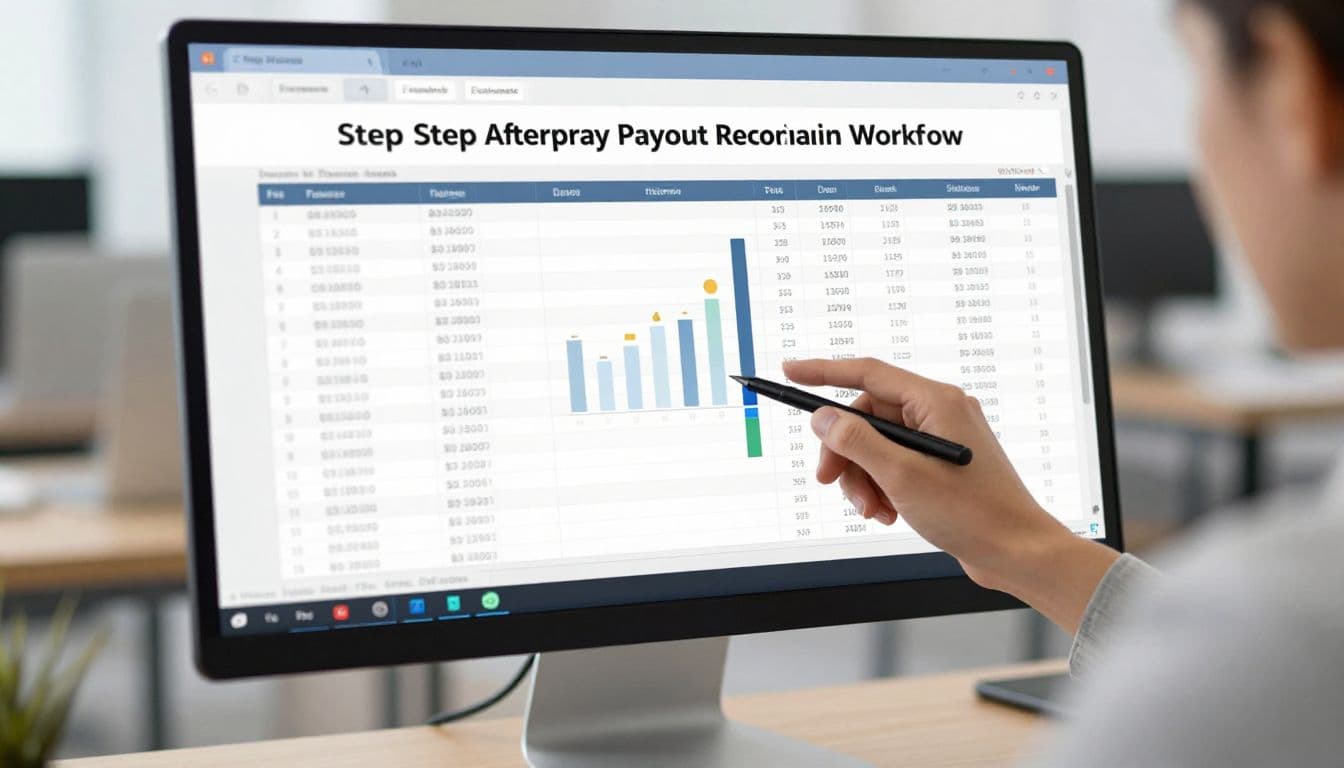
Step-by-step Afterpay payout reconciliation workflow
After gathering the records, work through each payout in the same order. Consistency matters because small differences can become difficult to trace when several settlements remain open.
1. Confirm the payout identity
Match the settlement reference, payout date, currency, and bank deposit amount. Don't rely on the bank description alone. A processor may group several sales days into one deposit or use a reference that differs from the report title.
Record the date range covered by the payout. If your business receives multiple currencies or operates more than one merchant account, confirm that the payout belongs to the correct location and bank account.
2. Tie out gross sales
Compare the settlement report's gross sales with the sales recorded in QuickBooks for the same transaction population. Check whether the report uses order date, capture date, fulfillment date, or another event date.
Gross sales should remain visible in your income reporting. They shouldn't disappear because Afterpay withheld fees before sending the deposit.
If your sales platform already sends individual transactions to QuickBooks, compare totals rather than entering a second batch. Look for duplicate sales receipts, missing orders, or transactions posted to the wrong income account.
3. Record fees as a separate deduction
Identify every fee category shown in the settlement detail. Labels may include processing fees, service fees, transaction fees, or other merchant charges. The names and presentation can vary.
Post fees to the appropriate expense account, unless your accountant has established another treatment for your business. Separate fee entries make gross margin and processor costs easier to review.
The fee total should agree with the settlement report. A small rounding difference may occur, but unexplained differences deserve investigation before reconciliation.
4. Account for refunds and chargebacks
Match refunds to the original sale when your system supports that method. Otherwise, use the refund or returns account selected in your bookkeeping policy.
Chargebacks may appear in a later settlement than the original sale. Search by transaction reference and review the date of the deduction. Posting the chargeback only to the payout date can obscure which customer order created the issue.
5. Review adjustments and timing items
Look for reserve releases, withheld amounts, dispute adjustments, corrections, or other entries that don't fit the regular sales and fee categories. Don't force an unknown amount into sales or fees.
If an item cannot be identified, post it to a clearly named suspense or review account only as a temporary measure. Add a note with the payout reference and follow-up date. A clearing balance without documentation becomes harder to resolve each month.
6. Match the net amount to the bank
After recording gross sales and deductions, the Afterpay clearing account should produce the expected net payout. Match that amount to the bank deposit in QuickBooks.
Depending on the workflow, you may match the imported bank transaction to an existing deposit, record a transfer from the clearing account, or use another approved entry method. Don't create a new income transaction simply because the bank feed shows a deposit.
A reconciled bank deposit can still contain incorrect bookkeeping if the fee and refund deductions were posted to the wrong accounts.
7. Review the remaining balance
After the deposit is matched, review the Afterpay clearing account. The balance should reflect only valid amounts still awaiting settlement, timing differences, or documented items.
An old debit balance may indicate missing sales, an unrecorded payout, or a duplicated deduction. An old credit balance may point to a payout that was never matched, a refund posted twice, or an integration error.
Common differences and what to check
When an Afterpay payout reconciliation doesn't balance, start with dates and references. Most errors become easier to find when you compare one settlement at a time.
- The bank deposit is lower than gross sales. Review processing fees, refunds, chargebacks, and other deductions before changing the sales total.
- The payout report and bank show different dates. Check settlement timing, weekends, holidays, time zones, and cutoff rules.
- QuickBooks shows duplicate income. Look for an imported sales transaction plus a manually recorded deposit.
- The fee amount doesn't match. Compare each fee category, currency, tax treatment, and rounding line.
- A payout has no matching clearing entry. Search for an integration failure, an unrecorded sales batch, or a deposit posted directly to income.
- The clearing account carries an old balance. Trace the oldest unmatched transactions by settlement reference instead of adjusting the balance without support.
- Sales tax does not agree with the books. Confirm that taxable sales, exemptions, tax rates, and filing periods follow the applicable state and local rules.
Don't use a forced reconciliation adjustment to make the numbers agree. An adjustment can hide a duplicated sale or misclassified fee, creating a larger problem during financial statement or tax review.
Keep a recurring QuickBooks payout checklist
Set a schedule that matches your payout volume. A high-volume store may reconcile every business day or week, while a smaller business may work on a monthly cycle.
For each period, confirm that:
- Every payout has a matching settlement report and bank transaction.
- Gross sales agree with the sales source after accounting for date differences.
- Fees, refunds, chargebacks, and adjustments have separate support.
- Net payouts match deposits in the correct bank account.
- The Afterpay clearing account has no unexplained aged balance.
- Sales tax postings agree with the applicable liability reports.
- Manual entries include the payout date, reference, and source report.
- Reconciled reports are saved with the monthly bookkeeping records.
Review the process when you change e-commerce platforms, add a store location, switch merchant accounts, or install a new QuickBooks integration. A new connection can change account mapping or create duplicate transactions without changing the amount deposited at the bank.
Conclusion
A dependable Afterpay payout reconciliation separates the sale from the settlement. Record gross revenue, account for fees and other deductions, match the net payout to the bank, and investigate every remaining clearing balance.
The best checklist is the one your business can repeat each period with the same source documents and account structure. Because accounting and tax treatment depends on your entity, books, merchant agreement, and jurisdiction, consult a qualified accountant for business-specific tax and accounting advice.