Reconcile Zelle Payments in QuickBooks Online Without Duplicates
Zelle can move a customer payment into your business bank account in minutes, but QuickBooks Online still needs a properly recorded sale or expense. When you need to reconcile Zelle payments QuickBooks Online imported from your bank, the hardest part is knowing what to record first.
QuickBooks Online doesn't treat Zelle as a native payment processor. Instead, you connect the business bank account, record the underlying transaction, and match the downloaded bank-feed item. That separation helps you avoid duplicate income, misstated expenses, and unexplained transfers.
Set up the bank connection before reviewing Zelle transactions
Zelle is a payment method, not an income or expense category. The accounting entry depends on what the payment was for:
- A customer payment usually belongs against an invoice or sales receipt.
- A vendor payment belongs to a bill, expense, or other appropriate cost account.
- A transfer between your own accounts isn't business income or an expense.
First, confirm that Zelle activity runs through a business bank account connected to QuickBooks. Mixing personal Zelle payments with business activity makes the bank feed harder to review and weakens your records.
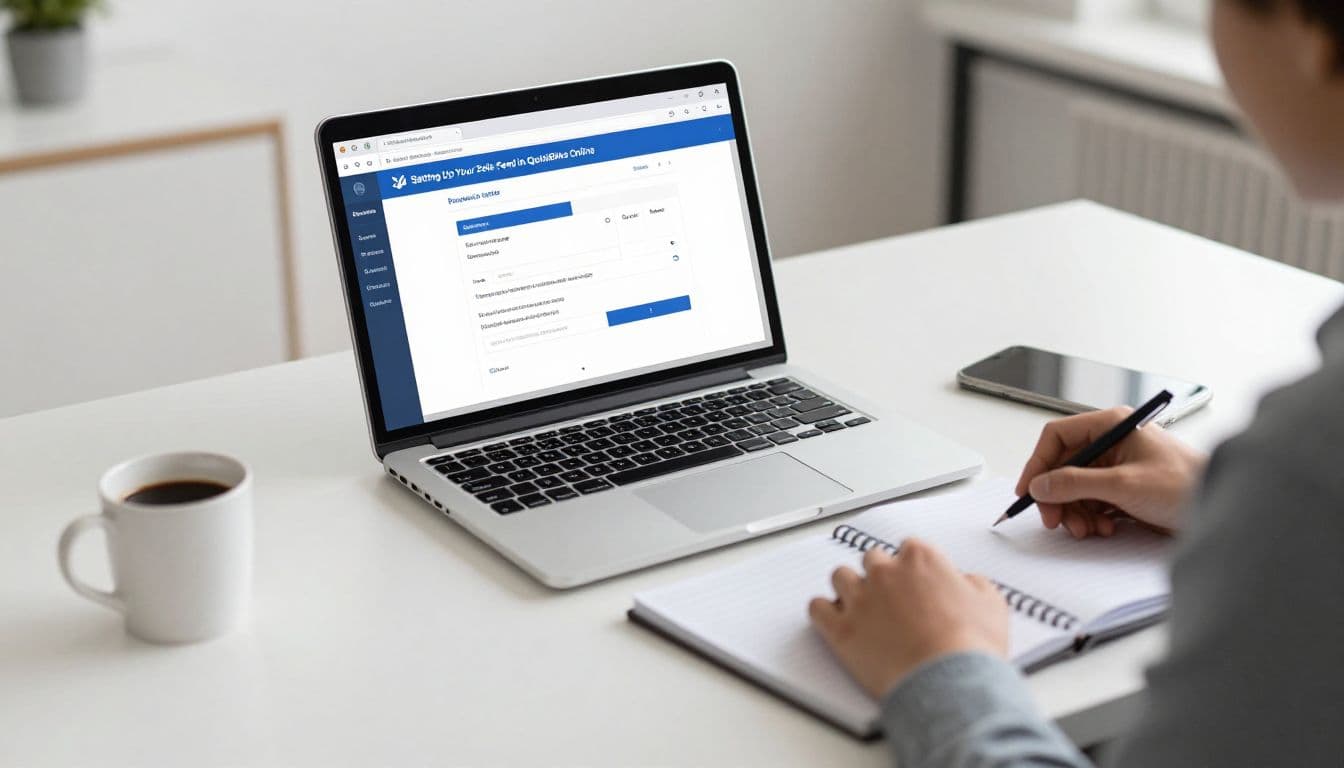
In QuickBooks Online, open All apps > Accounting > Bank transactions , then select Connect account or Link account . Search for your financial institution, sign in through the bank connection window, choose the correct business account, and select the download period.
The available history depends on the bank. Some institutions allow roughly 90 days of downloads, while others provide up to 24 months. Older Zelle activity may require a manual bank transaction upload.
Bank feeds also vary in the detail they provide. One bank might display "Zelle payment" and the sender's name. Another may show a generic description, an abbreviated name, or no useful Zelle detail. Keep the Zelle confirmation or account activity available so you can verify the sender, recipient, date, and amount.
If you're starting a new QuickBooks file, a QuickBooks setup checklist can help you establish the correct accounts and opening balances before importing transactions.
How to reconcile Zelle payments QuickBooks records correctly
The clean workflow has two parts. Record the accounting transaction first, then match the bank-feed entry when it downloads.

Customer payments received through Zelle
Suppose a customer pays an outstanding invoice through Zelle. The deposit confirms that money reached the bank, but it doesn't automatically close the invoice in QuickBooks.
Use this workflow:
- Open + New > Receive payment .
- Select the customer and the invoice being paid. Enter the actual payment date and amount.
- Choose Zelle as the payment method. If it isn't listed, add it as a payment method.
- Set Deposit to as Undeposited Funds or Payments to Deposit if you group deposits or want to review receipts before they reach the bank account.
- Save the payment.
When the Zelle deposit appears under Bank transactions , select Find match . If the payment appears as a match, review the amount, date, customer, and deposit account before selecting Match .
When you use Undeposited Funds, QuickBooks may require a bank deposit record first. Open + New > Bank deposit , select the business bank account, choose the customer payment from the list, and save the deposit. Then match the downloaded Zelle deposit to that bank deposit.
For a one-to-one payment that goes directly into the bank, you can select the business bank account in the Deposit to field if that matches your bookkeeping process. The important point is to use one accounting entry for the sale and one bank-feed match for the deposit.
If the customer paid for a sale that doesn't use an invoice, use the appropriate sales receipt or income workflow. Don't classify the bank-feed deposit as new income if you already recorded the sale.
Business expenses paid through Zelle
Outgoing Zelle payments need separate treatment. The bank-feed item shows money leaving the account, but the category depends on the purchase. Zelle itself isn't the expense account.
If you paid a vendor's bill, create the bill first when it doesn't already exist. Then use + New > Pay bills , select the vendor and bill, choose the business bank account as the payment account, and record Zelle as the payment method when available. Match the downloaded payment in Bank transactions .
For a direct purchase, open + New > Expense and enter the payee, payment date, amount, payment account, expense category, and business purpose. Choose Zelle as the payment method if your QuickBooks file includes that field. Add the receipt or a clear memo when possible.
When the bank transaction arrives, select Match if the expense or bill payment already exists. Selecting Add instead can create a second expense and overstate your costs.
Payments to an owner, member, or personal account require more care. A transfer to yourself may belong to an owner's draw, distribution, equity account, or another non-expense category. A personal purchase shouldn't be coded as a business deduction simply because it came from the business bank account.
Review, categorize, and correct bank-feed exceptions
To reconcile Zelle payments QuickBooks has imported, open each item in Bank transactions and expand the details before choosing an action. In Business view, QuickBooks may show the transaction under Assign to . Accountant view may display Category or match .
Use Match when the transaction is already recorded in QuickBooks. This includes an invoice payment, bank deposit, expense, bill payment, or transfer. Matching connects the downloaded bank activity to the existing record without adding another entry.
Use Categorize or Add when no matching transaction exists and you need QuickBooks to create one. Review the suggested account instead of accepting it automatically. A Zelle receipt usually needs an income account or a bank deposit connected to a recorded customer payment. A Zelle payment to a supplier needs the correct expense, inventory, fixed-asset, or other account.
Transfers deserve a separate review. If you move money between two business accounts, record a transfer between those accounts. If a customer deposit appears as a transfer, open the transaction and change the transaction type to the appropriate income or deposit workflow. If the payment is personal, use the correct equity or personal account rather than business revenue.
You can create a bank rule for repetitive Zelle activity, but use rules cautiously. A rule may work for a recurring rent payment to the same recipient. It can misclassify customer receipts when different customers pay varying amounts.
If you already clicked Add and created a duplicate, use the bank feed's Undo option if available. Then locate the original transaction and match it to the downloaded item. Check the account register afterward so the bank balance and income or expense totals remain accurate.
For hands-on help with feed setup, matching, and cleanup, QuickBooks assistance can help identify duplicate entries and incorrect account mappings.
Complete the formal QuickBooks Online bank reconciliation
Bank-feed matching and account reconciliation are related, but they aren't the same task. Matching connects individual downloaded transactions to your books. Reconciliation compares the entire account to a bank statement for a defined period.
After reviewing the Zelle activity, go to All apps > Accounting > Reconcile and select the business bank account. Enter the statement ending date and ending balance exactly as shown on the bank statement. Depending on your QuickBooks layout, you may also see options for Upload or Statement Auto Import .
Clear every transaction that appears on the statement, including customer deposits and vendor payments made through Zelle. Watch the reconciliation difference as you work. It should reach zero before you finish.
If the difference remains, check for a missing transaction, duplicate entry, incorrect amount, wrong date, or transaction posted to another bank account. Don't change the opening balance to force the reconciliation to balance.
If a Zelle transaction was already reconciled and needs correction, review it with your bookkeeper or accountant before changing it. The account history can show whether a transaction has been reconciled, often marked with an R in the register.
Keep Zelle records ready for bookkeeping and tax work
Save the Zelle confirmation, bank statement, invoice, receipt, vendor bill, and a short business-purpose memo when each item requires support. The bank description alone may not explain who paid, what you purchased, or why the transaction was business-related.
Review Zelle activity at least monthly, then compare the bank register with the statement and your supporting documents. Accurate small business bookkeeping gives you cleaner profit and loss reports and makes tax preparation easier.
Tax treatment depends on the nature of each transaction, your business structure, and applicable federal and state rules. This bookkeeping process isn't legal or tax advice, so consult a qualified tax professional about reporting, deductions, owner transactions, and record-retention requirements.
Keep every Zelle transaction tied to its purpose
A Zelle deposit is only the bank activity. The accounting record must show whether it settled an invoice, paid a bill, purchased supplies, moved money, or involved a personal transaction.
Record the underlying transaction, match the bank-feed item, and complete the formal reconciliation against the statement. When you follow that order, QuickBooks Online can show accurate customer balances, expenses, cash, and tax records without duplicate entries.